
Excel Date functions or Date formulas
One of the pre-requisite to master the use of Excel is to master the use of Excel Date Formulas. This is because a lot of data we are working on in our work contains date and time, such as, how old is your customer or employee as at today, when was the last time a particular client bought from you, the duration of a contract and etc. So without knowing how the date and time in Excel work, you will be spending a lot of your time manually trying to convert the dates into the relevant month or
year before you could begin your analysis. Knowing this, we feel that it is important for us to start this page by sharing with you the knowledge of how Excel stores dates and times in the worksheets. When you have a good understanding of date and time in Excel, you will be able to apply the date and time formula freely in your worksheet. And I guarantee that you will be working more efficiently than ever in analysing your data.
Excel stores dates as numbers
Excel stores dates as numbers (specifically integers) or sequential serial number in the worksheet. The date 1 Jan 2006 has a numerical value of 38718 while that for 1 Jan 1900 has the value of 1. By now, you should have figured out that the number presents the number of days the date is from 1 Jan 1900. 1 Jan 2006 is therefore 38,718 days from 1 Jan 1900. The interpretation is true only for dates on and after 1 Mar 1900. Click here for more information.
Excel stores times as decimals
What about time? Excel stores time as decimals. 1 day is equal to 24 hours. Therefore, 12 hours is equal to 0.5 (12 hours divided by 24 hours) or 0.5 day. On the same basis, 3 hours is equivalent to 0.125, computed by taking 3 divided by 24. Therefore, if you are to enter the number 38718.125 into a cell and format the cell to show the date time format, it will show 1 Jan 2006, 3 am.
Now that we have a better understanding of dates and time in Excel, we can start off with our dates functions.
Excel Date Function 1:Date(year, month, day)Returns the sequential serial numberthat represents a particular date,i.e. show the sequential serialnumber (38718) of a particulardate (1 Jan 2006)
Excel Date Function 1:Date(year, month, day)Returns the sequential serial number that represents a particular date,i.e. show the sequential serial number (38718) of a particulardate (1 Jan 2006)
After you have understood how Excel stores date and time, you might think this is a useless. It is actually not.
Consider a case when you exported the data records from a database with the year, month and day stored in different columns. You would not be able to format the date in Excel to show it in dd-mm-yy or any date format you want.
In this case, the excel date function would come in handy because you could convert it into an Excel recognizable date. Assuming that the Year is in Cell A1, Month in Cell B1 and Day in Cell C1. You can convert these value into a date by using the formula “=Date(A1,B1,C1)” (excluding the quote) in cell D1. After the conversion, you are able to perform other functions with the new value.
Excel Date Functions 2:DAY(Serial_number), MONTH(Serial_number),YEAR(Serial_number)Returns the day, month and year of a date (represented by a serial number)Excel Date Functions 2:DAY(Serial_number), MONTH(Serial_number),YEAR(Serial_number)Returns the day, month and year of a date (represented by a serial number)
Assuming you have a set of records and one of the fields is the date of birth. And you want to find out how many of these birthdays are in a particular month. How are you going to find out?
If you are to sort the dates, you would notice that the dates are presented from the earliest to the latest. You will never be able to sort them according to the month. This is because the dates are actually stored as serial numbers. (Click here to this section of the Excel Date Functions for explanation). In order to sort the dates by their respective months, you need to use the MONTH Function. Assuming that the date of birth is in column A starting from 2nd row, then the formula is “=month(A2)” in row 2, “month(A3)”,…etc. Once you have the month of the birth date presented, you are able to group them with the SORT function.
Excel Date function 3:Networkdays(Start_date, End date,list of holidays)Calculates the number of working days between 2 datesExcel Date function 3:Networkdays(Start_date, End date,list of holidays)Calculates the number of working days between 2 dates
You must activate the analysis Toolpak before you use this formula:
[supsystic-tables id=13]
As the name implies, Networkdays function calculates the number of working days between 2 dates. The formula does not count weekends and holidays (as defined by the user). For example, to calculate the number of working days between 22 Dec (Fri) and 27 Dec (Wed), we can apply the networkdays formula in the following manner:
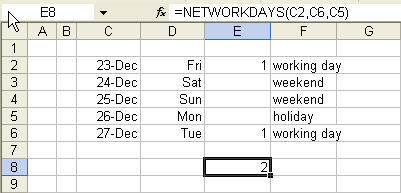
C2 (23 Dec 09) refers to the start date, C7 (28 Dec) refers to the end date. H2:H12 consist of a range of dates that are designated as a public holidays. 26 Dec and 27 Dec are not counted because they fall on weekend.The formula returns 3 working days because 23, 24 and 28 Dec 09 are working days.
Networkdays formula calculates number of working days between 2 days based on a 5 days work week. Here is an ALTernative to calculating working days without using NETWORKDAYS formula. If you are trying to calculate number of working days based on a 5.5 days work week, this formula works well except that it will not consider public holidays.
Excel Date function 4:Weekday(date in number format, day of the week arranged in different sequenceReturns the day of the week for a date.
Excel Date function 4:Weekday(date in number format, day of the week arranged in different sequenceReturns the day of the week for a date.
Using the weekday formula, you will be able to find out that 1 Jan 2009 is a Thursday. Remember, Excel read date as numbers, therefore 1 Jan 2009 cannot be entered into the formula as is. You must entered the serial number that represent the date 1 Jan 2009. The number is 39814. The best way to use this formula is to enter the date (1 Jan 2009) into one of the cells. Excel will automatically convert your entry to 39814 and format it as a proper date.
In your weekday formula, if you just entered the date (e.g. =weekday(39814)), the number returned is 5, counting Sunday as 1, Monday as 2, etc with Sat returned as 7. If you entered, a number 2 after the serial number, (e.g. =weekday(39814,2)), it will return the value 4 as it will understand that you want to start counting the week from Monday. And Thursday is 4th day of the week. If the value 3 is used instead, then the value 4 will be returned too. But this time, they will start counting the week from Sunday, with Sunday represented by the value zero and ending with 6 for Sat.
Excel Date function 5:EDATE(input_date, x months from the input_date)Returns the date which is x number of months from the input date.
Excel Date function 5:EDATE(input_date, x months from the input_date)Returns the date which is x number of months from the input date.
You must activate the analysis Toolpak before you use this formula:
[supsystic-tables id=13]
The EDATE has the capability of returning an excel date that is x number of months from the input date. It is different from the date formula which you add a certain number of months to a predefined date. In EDATE, they are intelligent to adjust the last day of the month according to the number of days in the calendar month.
For example, if you have a date like 31-July-2009 in cell A1 and you want to find out the date 2 months from now, the EDATE formula (entered without quotes as “=EDATE(A1,2)”) will return 30 Sep 2009.
If you use the DATE formula (entered without quotes as
”=DATE(year(A1),MONTH(A1)+2,DAY(A1))”),
the DATE formula will return 1-Oct 2009.