














Convert text to number
Knowing how to convert text to number in Excel is a valuable skill to have, especially when you have to import a file into excel with some of these numbers formatted as text. When this happens, most people would try to format the cell as a number format. Yet it does not seem to work. This is because Excel still recognized them as text. To complete the process, I used to edit the cells individually and then press the “Enter” key so that Excel can recalculate the cell. The action will
convert the text formatted number to real number. To do that for thousands of cells is a nightmare.
Here is one method to convert text to numbers easily.
1. Type a number 1 into a cell. Copy the number 1 in the cell. You can also use Ctrl + C to copy.
2. Highlight the range of text formatted numbers.
3. Without de-selecting the range, go to the menu, click on edit, paste special.
4. In the paste special dialog box, select multiply or add in the operations section as shown.
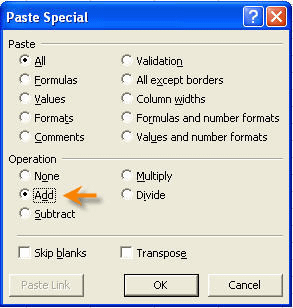
5. Click OK. The texts are converted to numbers.
If it is a formula in the cells, then the above cannot be used. Here is what you should do:
a. Highlight the range of text formatted formulas.
b. Format the cell as General category.
c. Activate the replace function by going to the menu, select edit, replace.
d. In the replace dialog box, enter “=” (without inverted commas) in both the find and replace box.
e. Click on the Replace All button. As Excel replace the “=” sign, it will recalculates the formulas in the cells. The formulas in the selected cells are converted to real formulas.
Convert Text-formatted numbers to proper numbers.
New! Comments
Have your say about what you just read! Leave me a comment in the box below.
Share this page:
Enjoy this page? Please pay it forward. Here’s how…
Would you prefer to share this page with others by linking to it?
- Click on the HTML link code below.
- Copy and paste it, adding a note of your own, into your blog, a Web page, forums, a blog comment, your Facebook account, or anywhere that someone would find this page valuable.
<a href=”http://www.advanced-excel.com/”>Advanced Excel – From a Business Perspective</a><a href=”http://www.advanced-excel.com/”>Advanced Excel – From a Business Perspective</a>

Excel Courses for Business Professionals
Copyright © advanced-excel.com 2007 – 2019. All Rights Reserved. Privacy Policy
Microsoft® and Microsoft Excel® are registered trademarks of Microsoft Corporation.
advanced-excel.com is in no way associated with Microsoft