
Calculate Payback Period
Payback period refer to the period (likely to be the year) where you would recover your money you have invested, in this case, the insurance premium. The example will calculate when the surrender value would exceed the premium paid. Given below is the illustration from a policy.
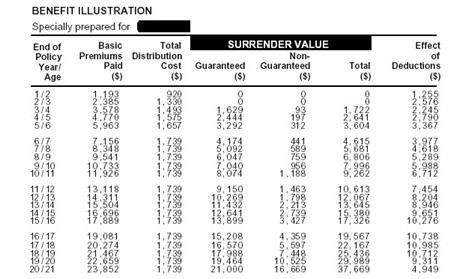
The data is re-presented in the excel spreadsheet shown below.
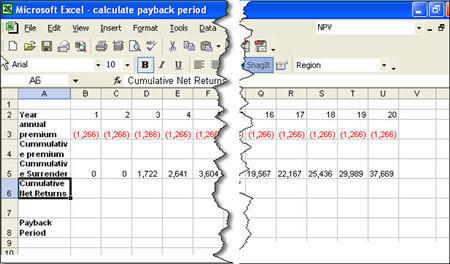
And here is how we calculate payback period:
a. Calculate the cumulative investment using the sum formula and absolute cell reference. In cell B4, enter the following formula without quotes: “=sum($B$3:B3)”. By entering the dollar sign in the first $B$3, we are fixing the position of the first cell.
b. Copy the formula across to year 20. Notice that as you copy the formula from B4 to U4, the second B3 will change relative to the position of the formula cell while the first B3 formula remains.
c. Find the cumulative net returns for the investment by entering the formula without quotes “=B4+B5” into cell B6. Copy the formula to year 20.
d. To calculate the period of payback, enter the lookup formula without quotes “=LOOKUP(0,$B$6:$U$6,$B$2:$U$2)”. The formula will look up the value 0 in the range $B$6:$U$6 and returns the result (in this case the year) which is less than and closest to 0.
e. As we are looking for the very first period that make your investment positive, we need to add 1 to the formula. You final formula should look like this: “=LOOKUP(0,$B$6:$U$6,$B$2:$U$2)+1”.
f. Take note that to use the lookup function, the values must be arranged from ascending order.