The Match Formula
The MATCH formula is used to find a value in a range and return the relative position in that range. The formula is different from the VLOOKUP formula because it returns the position while the VLOOKUP formula returns the value found. The VLOOKUP formula can return ALTernative values found in the same row as the found value.
The basic formula contains 3 parts:
Part 1:The value you want to find in the range.
Part 2:The range to find the value.
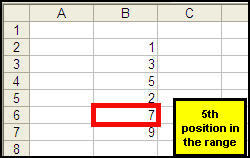
Part 3:The value zero to return an exact match in the following example given below, we want to find out where is the number 7 in the range B2:B7
To do that, enter the formula into a blank cell
=MATCH(7,B2:B7,0)
he cell will return the value 5, indicating the the number is found in the 5th position in the range.
What if they cannot find the value?
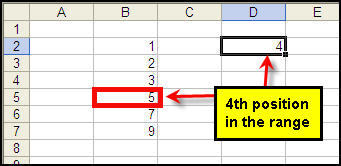
If the value (e.g. 6) does not exist, the formula will return #N/A indicating that the value you are find does not exist. But if you change the 0 in the 3rd part to 1 AND arrange the values in ascending order (smallest to the largest number), it will return the position of the value 5 (4th position in the range in cell D2 as shown in diagram below) which is the value in the range smaller than or equal to 6 but largest among those less than the value 6. See diagram below.
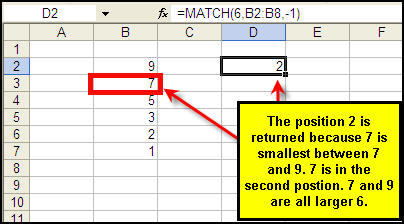
If the values are arranged in descending order in the range, the formula will still return the position of the value that is larger than or equal to 6 but smallest among those more than the value 6. In our example below, the value 7 is the smallest value among those more than 6. Therefore, the position 2 is returned.
What else can the MATCH formula do?
The above concept can be extended to find the position of the last value in the given range. By putting a value that is extremely big such as 9 to power of 100, the formula will consistently return the last value in the range even when there are spaces in between. See the example below:
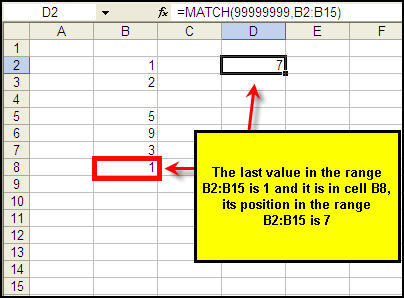
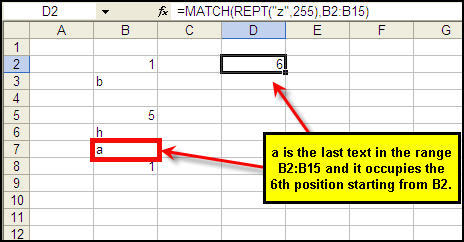
The above concept can be applies to text as well. Instead of searching the value 9 to the power of 100, you can enter multiple z into the find value. You can use the REPT formula to repeat the z 255 times for example and be assured that no word is arranged at the back of z 255 times. The formula will be able to find the last text in the range, even when there are numbers found after the range.