
Organizing the Excel toolbars and maximize their uses
You must first organize your excel toolbars. This is the first thing you must do to improve your effectiveness. Why do I say that?
When you installed Excel in your computer, excel will make two toolbars available to you by default. They are known as the standard and formatting toolbars. These 2 toolbars are usually presented as shown:

You may think that this is normal. But what you are not aware of is that some of the icons are hidden from you. As a result, you are not maximizing the use of these icons. To do that, you need to separate the 2 sets of toolbars and arrange them as shown below:
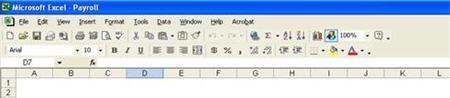
Can you see the difference? There are icons on the right of the toolbars (e.g. sorting the records by ascending order) are not available to you previously.
So how do we transform the toolbars from the first diagram to the second? Here are the steps:
1. Mouse your mouse cursor from the left to the right slowly.
2. As you do that, you will notice that the mouse cursor will change to a 4 arrows shape, like those you normally see when you can move a picture.
3. Click on the left mouse button when the shape appears.
4. Hold onto the left mouse button and move the mouse down slightly.
5. You will see the toolbars separate into two. Arrange them the way you like it. You are done.
Find the above instruction difficult to follow? Watch this video on how to organise the excel toolbars