















DateDif – An Excel’s Age Calculator
In the course of managing data with Excel, you are likely to encounter the need of calculating the number of years and months between 2 dates, such as the age of the employees, length of service, and of an investment, etc.
The most commonly used and straight-forward approach is to take the difference between the 2 dates to return you the numbers of days. The year is then calculated by dividing this number of days by 365.25 days (taking into account leap year occurrence).
If the number of months cannot make up a complete year, then computation becomes much more complex.
Life can become simpler with some great Excel tips.
Make use of the MOD formula to determine the number of days left over after counting the number of full years and then divide it by 30.5 days (average number of days per month) . This gives a fairly good estimate of the months in the partial year if you can afford to ignore the difference in the number of days in each month.
If accuracy is very important, such as in the computation of employees’ pay or bonuses, then you might be led to think that using macro is the only way out. I have good news for you! Excel has a hidden formula (I call it “hidden” because it is not listed in the help (F1) function) that can calculate the number of years, the months and down to the number of days for you, taking into consideration the different days in a particular month. For example, the formula can quickly tell you that there are 1 year 9 months and 22 days between 19 May 2007 and 13 Mar 2009 with Feb 09 ending with 28 days. Sounds exciting? Let me present to you…
The DATEDIF formula!
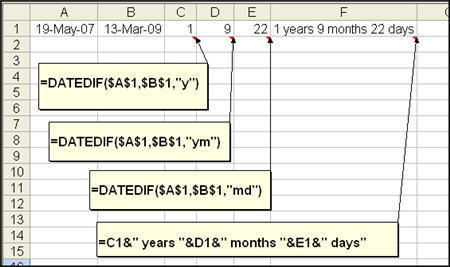
DATEDIF represents “date difference” in short. It has 3 parts, the first part is the earlier date, 2nd part is the later date and the 3rd part determines which number to return, is it number of complete YEAR, number of complete MONTH, or the number of DAYS left that cannot make up another month. So if we want to calculate the time between 19 May 2007 and 13 Mar 2009, we have to first enter the 2 dates into the worksheet, for example in A1 and B1. This will allow Excel to capture the serial number for the 2 dates. Then in Cell C1, you can enter the DATEDIF formula as follows:
=DATEDIF(A1,B1,”y”)
y indicates the command for the formula to return the number of full years from 19 May 2007 to 13 Mar 2009. In this case, there is only one full year (ie 19 May 2007 to 18 May 2008). Between 19 May 2008 and 13 Mar 2009 is less than one year.
To calculate the number of months, you can enter a similar formula in cell D1 changing the “y” to “ym”.
=DATEDIF(A1,B1,”ym”)
This will command Excel to return the number of months from 19 May 2008 (one year before end date starting from the day and month of the start date) to 13 Mar 2009, giving us the number 9 for 9 months.
And to calculate the days, you can copy the formula in D1 and put it in cell E1, changing the 3rd part to ‘md”. This will make Excel calculate the number of days from 19 Feb 2009 (one month before end date with day from start date) to 13 Mar 2009, which will return us 22 for 22 days between 19 Feb 2009 and 13 Mar 2009.
Using Concatenate, you can combine the results into cell F1, so that it shows up as 1 year 9 months and 22 days. The formula is
=C1&” years “&D1&” months “&E1&” days”
If you do not want to use up so many cells, you could replace the cell reference in the above with the actual DATEDIF formula as shown below:
=DATEDIF($A$1,$B$1,”y”)&” yrs “&DATEDIF($A$1,$B$1,”ym”)&” months “&DATEDIF($A$1,$B$1,”md”)&” days”
Codes you could use for the 3rd part of DATEDIF
=DATEDIF($A$1,$B$1,”y”)&” yrs “&DATEDIF($A$1,$B$1,”ym”)&” months”&DATEDIF($A$1,$B$1,”md”)&” days” Codes you could use for the 3rd part of DATEDIF
[supsystic-tables id=1]
Click here to see the difference between excel formulas and functions
New! Comments
Have your say about what you just read! Leave me a comment in the box below.
Share this page:
Enjoy this page? Please pay it forward. Here’s how…
Would you prefer to share this page with others by linking to it?
- Click on the HTML link code below.
- Copy and paste it, adding a note of your own, into your blog, a Web page, forums, a blog comment, your Facebook account, or anywhere that someone would find this page valuable.
<a href=”http://www.advanced-excel.com/”>Advanced Excel – From a Business Perspective</a><a href=”http://www.advanced-excel.com/”>Advanced Excel – From a Business Perspective</a>

Excel Courses for Business Professionals
Copyright © advanced-excel.com 2007 – 2019. All Rights Reserved. Privacy Policy
Microsoft® and Microsoft Excel® are registered trademarks of Microsoft Corporation.
advanced-excel.com is in no way associated with Microsoft