














Excel 2010 – Customized Ribbon / Tab
In Excel 2010, Excel users have to select different tabs to find and click on the icon for a specific command. The change in interface means I have to increase the number of steps that I have to take to activate a command as compared to the toolbar interface (Excel 2003 and below) where everything can be found within 2 rows of icons and activate with one click. This increase the number of steps that I have to take before I can activate the command I want.
This doesn’t seem to take up a lot of extra
time if you view each command you wish to activate in isolation. But as a heavy user of Excel, the extra steps add up quickly and within 10 mins, I will have to click two to three hundred times more to perform the same actions I would have done with the older version of Excel (2003 and below).
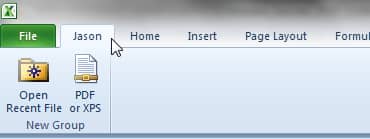
If this is what you are experiencing in Excel 2010, then I have good news for you. In Excel 2010 came with the ability to customise your own ribbon. So if you are constantly working with some commands in Excel, you can create a new personalised tab and add these commands into this new tab. With the personalised tab, you do not have to jump from tab to tab to find the commands that you need.
You can watch this video to find out how to customise your Excel Ribbon or read the steps below:
To customise or personlise your Ribbon, follow the steps below:
1. Point your cursor on the Home tab (or anywhere within the ribbon)
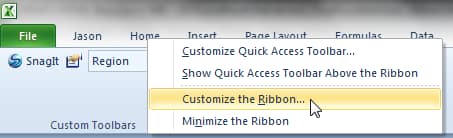
2. Do a right click.
3. Select “Customize the Ribbon” from the pop-up menu.
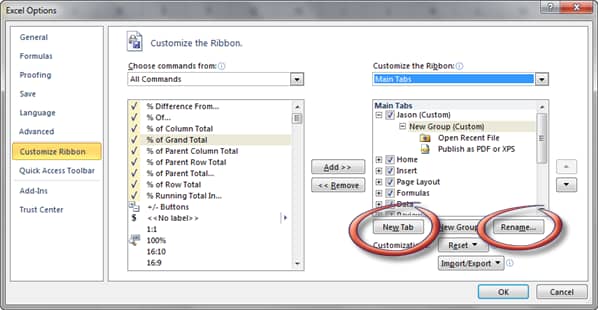
4. Click on the button “New Tab” found near the bottom right hand side of the window.
5. Making sure that the new tab is selected, click on the “Rename” button to rename the tab to a preferred name. Using the button on the right side of the window, mover the tab above the “Home” tab. This will place your personalized tab on the left of the “Home” tab in the Ribbon.
6. Go to the middle top of the window. Click on the dropdown list found below the description “Choose command from:”. Select Main Tabs. Select the command you wish to add to the customize Ribbon. You can also add the entire group to your new tab.
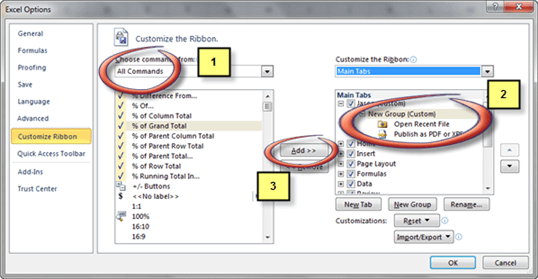
7. Repeat the last step to add in more commands or groups to your personalised tab.
8. Once you have chosen the commands you like to add the new tab. Click OK to see your new tab displayed on your Excel spreadsheet.
Customised Toolbar
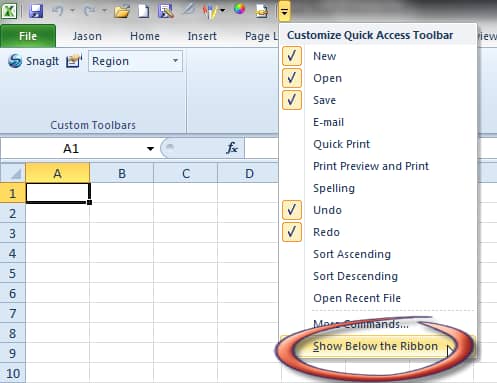
Another change you can do with Excel 2010 and 2007 is the quick access toolbar. By placing the toolbar below the Tab instead of above, you are likely to click on the quick access toolbar more often. If you are an hard core Excel 2003 fan but is forced to use the new version of Excel 2007 and 2010, this will help you in your transistion. To move the quick access toolbar below the Tab, just click on the inverted triangle next to the quick acces toolbar and select “Show Below Ribbon”. That’s it.
Click here to discover what’s new in Excel 2010.
New! Comments
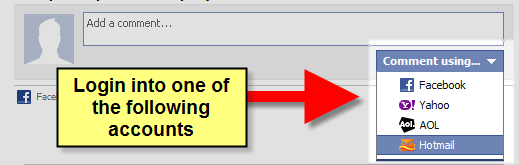
Have your say about what you just read! Leave me a comment in the box below.
Share this page:
Enjoy this page? Please pay it forward. Here’s how…
Would you prefer to share this page with others by linking to it?
- Click on the HTML link code below.
- Copy and paste it, adding a note of your own, into your blog, a Web page, forums, a blog comment, your Facebook account, or anywhere that someone would find this page valuable.
<a href=”http://www.advanced-excel.com/”>Advanced Excel – From a Business Perspective</a><a href=”http://www.advanced-excel.com/”>Advanced Excel – From a Business Perspective</a>

Excel Courses for Business Professionals
Copyright © advanced-excel.com 2007 – 2019. All Rights Reserved. Privacy Policy
Microsoft® and Microsoft Excel® are registered trademarks of Microsoft Corporation.
advanced-excel.com is in no way associated with Microsoft